Do You Actually Need Two Monitors?
Decide between one monitor, two monitors, an ultrawide, or a laptop-plus-monitor setup based on workflow, desk space, and budget.
- Published
- August 12, 2026
- Last updated
- August 12, 2026
- By
- BuildGauge Editorial
The second display needs a job
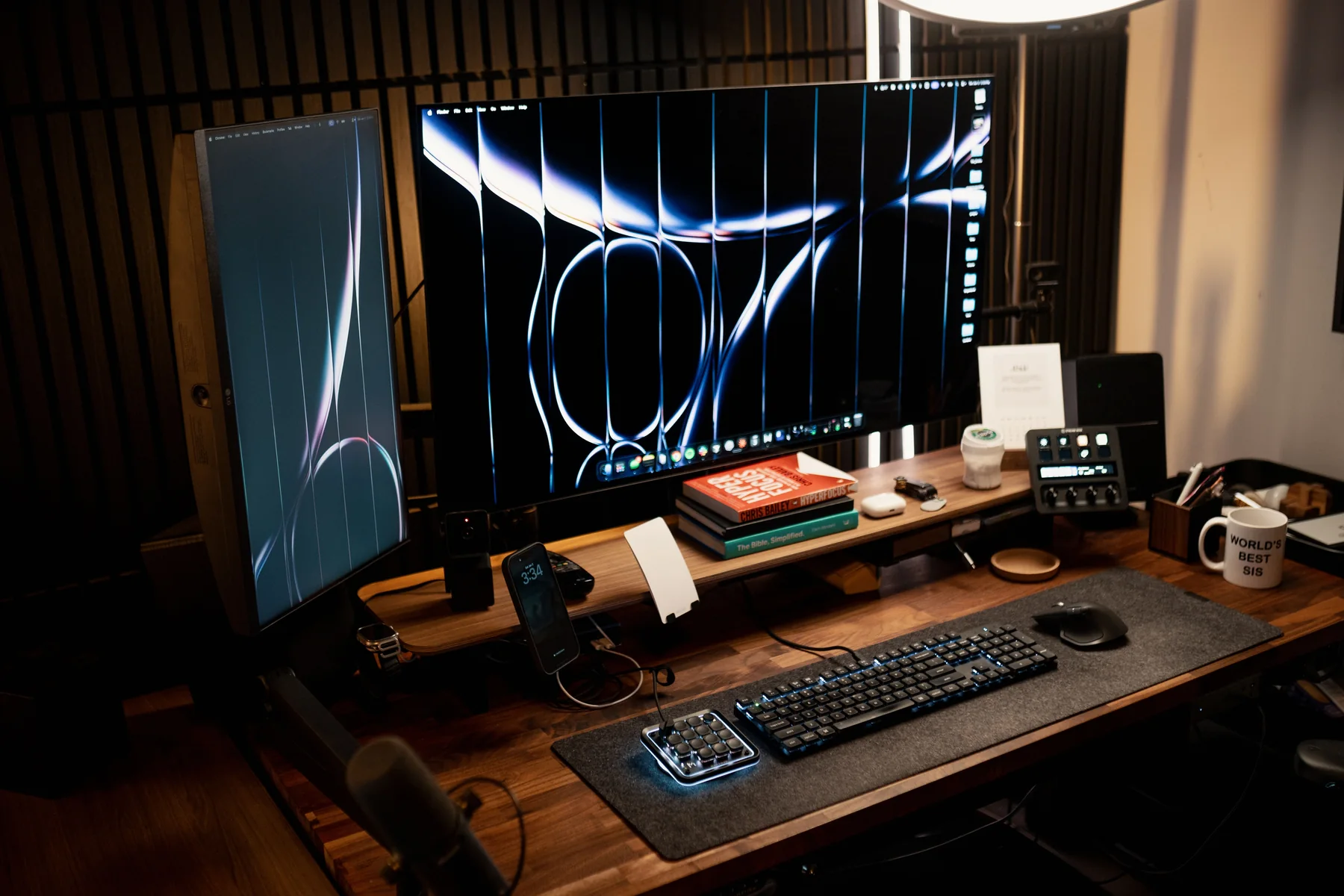
Two monitors are useful when you regularly compare documents, keep a reference visible while coding, monitor a long-running process, or separate communication from focused work. The benefit comes from a repeated workflow, not from filling desk space.
Gaming alone rarely requires two equal displays. A secondary screen can help streaming or communication, but the primary monitor should receive the budget first.
Programming, engineering, CAD, and laptops
Programming can benefit from code on one screen and documentation or output on another. Engineers may separate a model, schematic, data view, or lab reference. CAD users often gain more from one larger, sharper primary display than two small low-quality panels.
A laptop-plus-monitor arrangement already provides two screens. Try that layout before buying another monitor, and verify that the laptop or dock supports the intended outputs.
| Situation | Likely best starting point | Reason |
|---|---|---|
| Small desk | One right-sized monitor | Protects usable depth and width |
| Laptop productivity | Laptop + one monitor | Uses equipment already owned |
| CAD / creator | One strong large display | Protects image and workspace quality |
| Heavy multitasking | Two monitors | Keeps recurring parallel views visible |
| Clean single canvas | Ultrawide | Avoids a center bezel |
Space and budget are requirements
Monitor width is only part of the footprint. Stands consume depth, speakers need placement, and monitor arms require compatible mounting and verified weight support. On a narrow desk, a dual setup can reduce comfort and usable work area.
A low budget split across two displays often buys two compromises. BuildGauge would rather recommend one display that meets the primary requirement and reserve money for a later expansion.
An ultrawide is an alternative, not an upgrade by default
An ultrawide can create a continuous workspace and reduce cable complexity, but it may cost more and has different gaming and sharing behavior. Confirm software window management, console support, and desk size.
The right arrangement is the one that supports your repeated tasks with the least unnecessary equipment.
Use a workflow test instead of a productivity slogan
Two monitors help when information must remain visible while another task is active: code beside documentation, a schematic beside a datasheet, a meeting beside notes, or source material beside a report. They help less when the work is sequential, interruptions are the real problem, or the second screen becomes a permanent home for notifications.
Run a one-week test using virtual desktops, window snapping, or an existing laptop screen. Note how often you switch between two specific windows and whether side-by-side visibility prevents mistakes or merely feels spacious. If the same pairing appears every day, another display has evidence behind it. If not, improve window habits before buying hardware.
Budget for the complete two-display system
The cost can include a second monitor, arm or stand, cables, adapters, a dock, and enough desk depth. A laptop may support two external displays only through particular ports or resolutions. A desktop GPU may have enough connectors but still require the correct cable standard. Check those limits before assuming the second panel is a one-item purchase.
Matching monitors create consistent height, density, color, and controls, but an existing display does not need replacement merely for symmetry. A lower-cost secondary screen can be ideal for documents and communication. Put the better panel directly in front of you and angle the secondary inward so the neck movement is occasional, not constant.
| Situation | Likely best layout | Reason |
|---|---|---|
| Code plus reference | Primary landscape + secondary portrait or landscape | Persistent documentation and output |
| CAD or timeline work | One large or ultrawide primary | Continuous horizontal canvas |
| Laptop on small desk | One good external display | Avoid crowding and dock complexity |
| Meetings plus notes | Laptop screen + one external | Existing screen may already solve it |
One large monitor, an ultrawide, or two separate displays
One large 4K monitor provides a continuous canvas and fewer bezels, with flexible software layouts. An ultrawide favors timelines and wide application windows but may offer less vertical room than expected. Two monitors create strong zones and let one remain dedicated to reference material, while adding a bezel, more cables, and greater width.
Application behavior matters. Full-screen sharing is often simpler on a separate monitor; very wide shares can be difficult for viewers. Games may support standard 16:9 resolutions more consistently than ultrawide formats. If color-critical work is involved, keeping one known display as the reference can be easier than matching two inexpensive panels.
When a second monitor is the wrong fix
Do not add a monitor to a desk that lacks viewing distance, stable support, or a comfortable primary position. Fix the chair, display height, or glare first. Do not buy one because many professional setups show two; the unused screen still consumes physical and visual space. A tablet or laptop screen may already cover occasional reference duty.
Spend less by reusing a compatible panel or starting with one adjustable 27-inch display. Spend more only when resolution, color, or connectivity requirements apply to both screens. If the purchase solves a documented daily pairing, it can be worthwhile. If the goal is simply to make the desk look complete, keep the money.
Examples from the current BuildGauge catalog.
These examples illustrate the product classes discussed above. The advisors rank products from your complete answer set.
Dell UltraSharp U2724D
A productivity-focused 27-inch QHD-class monitor with an adjustable stand and broad hub connectivity for programming, engineering, and professional work.
- Typical planning range
- $360-$480
LG 34WN80C-B UltraWide
A wide single-display productivity option for timelines, code, reference material, and CAD panels when the desk has enough width and dual monitors would add clutter.
- Typical planning range
- $420-$600
Dell P2425H
A compact productivity monitor for very small desks, secondary displays, and budget work setups where 24 inches and standard refresh are sufficient.
- Typical planning range
- $170-$240
Some links on this page may be affiliate links. BuildGauge may earn a commission if you purchase through them at no additional cost to you. Recommendations are selected independently.
Turn the guidance into one clear answer.
Tell BuildGauge your budget, existing equipment, and priorities. Every prefilled answer can be changed.